RoomSketcher Pro and Team subscribers have many possibilities to choose what should be dispalyed on their 3D Floor Plans. Do you want to show all furniture, just fixed appliances, or none at all? What about room names? You choose what to show on your 3D Floor Plans.
By default, all furniture, room names, zone sizes, and labels are shown on the 3D Floor Plan. Learn below what can be changed.
Want to adjust these settings?
👉 Contact us and we'll update them for you.
What Can I Show or Hide on My 3D Floor Plans?
With a RoomSketcher Pro or Team subscription, you can tailor what's visible on your 3D Floor Plans. Below we have listed all available options. These settings apply across your entire account, so once they're set up, every floor plan adheres to the same style.
If you’d like to adjust any of these settings, simply contact us and we'll update them for you.
- Show Furniture
- Show Zone Names
- Show Zone Sizes
- Always Show Fixed Ceiling Items
- Show Furniture Labels
Show Furniture
You can decide what kind of furniture will be included when you render 3D Floor Plans. You have 3 options:
All furniture – All furniture you have added in your RoomSketcher project will be included.
Fixed installations – Only items marked "fixed" will be included. Fixed installations include kitchen and bathroom furniture, as well as wardrobes and fireplaces. To mark an item as fixed, select it in the RoomSketcher App in your project, click Advanced Properties on the right, and check Fixed.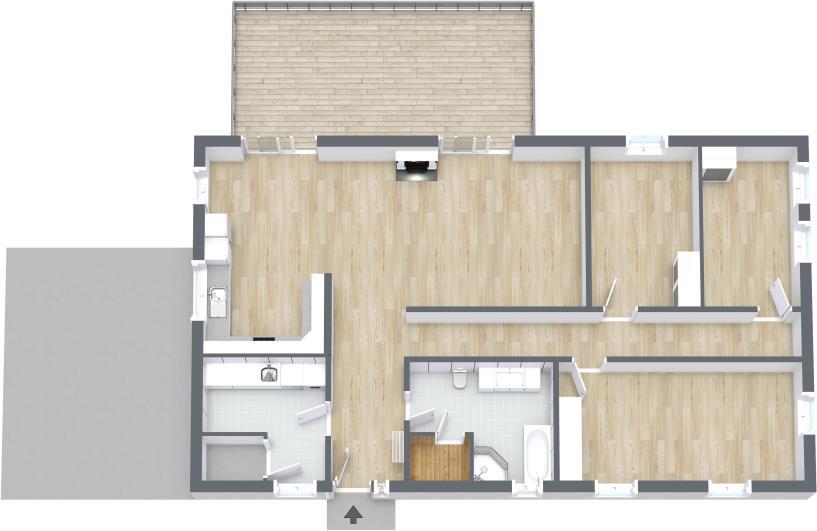
No furniture – No furniture or fixed installations will be included. However, your plan will still include doors, windows and stairs.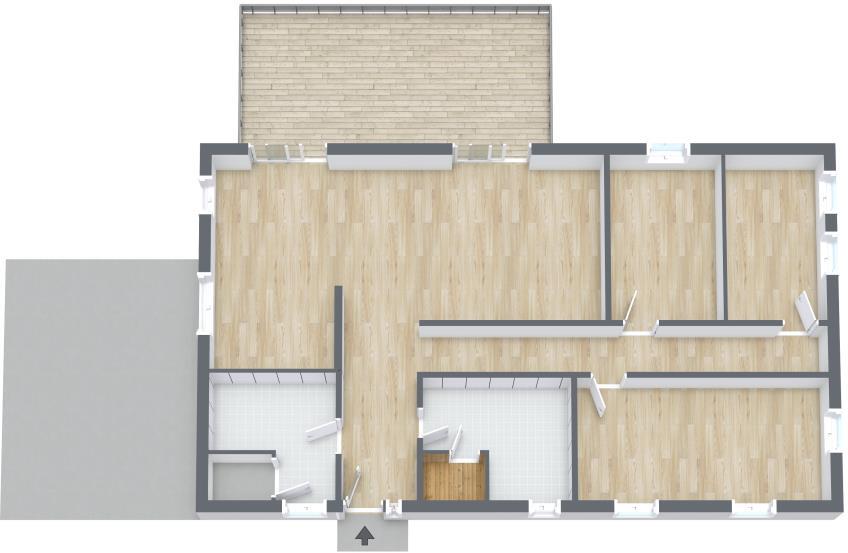
Show Zone Names
You can choose whether or not you want zone (or room) names to be included on your 3D Floor Plan that you have added (see Add and Move Room Names).
Show Zone Sizes
You can choose whether or not you want zone (room) sizes to be included in your 3D Floor Plan that you have specified (see Display the Area of a Room on Floor Plans).
Always Show Fixed Ceiling Items
With this option, items marked as both Ceiling Item AND Fixed Installation will be included in the 3D Floor Plan, even if it is placed above Wall Cut Height (see explanation of Wall Cut Height here). This option is particularly useful if you have a skylight in your floor plan, and want to include it in 3D. To mark an item as Fixed, select it in the RoomSketcher App in your project, click Advanced Properties on the right, and check Fixed.
Show Furniture Labels
You can choose whether or not furniture labels should be included when rendering 3D Floor Plans. If this option is chosen, furniture labels will be included when you have added them to items in your project. To add a furniture label to an item, select it, and type a Label (see also Add Labels on Furniture).
|