Need precise area calculations for your floor plans? With a RoomSketcher Pro or Team subscription, you can access a full range of professional-grade area calculation tools. Whether you're creating plans for real estate, construction, or property development, RoomSketcher lets you calculate floor plan areas based on international standards and project requirements.
This article describes the following topics:
- What Is Total Area?
- What Total Area Calculation Options Can I Choose?
- How Do I Assign an Area Type to a Zone?
- How Do I Calculate the Total Area?
- How Do I Add the Total Area to My Floor Plan?
Follow the steps below or watch this short video:
What Is Total Area in RoomSketcher?
"Total Area" refers to the overall size of your floor plan, but there are different ways to calculate it depending on what you include — such as external walls, internal walls, corridors, staircases, or lift shafts.
RoomSketcher offers six different calculation methods, covering the most common international standards. This way, you can choose the method that best fits your local standards or your project needs.
What Total Area Calculation Options Can I Choose in RoomSketcher?
In RoomSketcher, you can choose from:
- Grand Total Area
- Gross Floor Area
- Gross Internal Area
- Internal Zone Area
- Primary Area
- Secondary Area
The table provides a quick overview, and we give a detailed explanation of each option below.
| Grand Total Area | Gross Floor Area | Gross Internal Area | Internal Zone Area | Primary Area | Secondary Area | |
|---|---|---|---|---|---|---|
| Primary | ✓ | ✓ | ✓ (only internal walls) | ✓ (no walls) | ✓ | |
| Secondary | ✓ | ✓ | ✓ (only internal walls) | ✓ (no walls) | ✓ | |
| Outdoor | ✓ | |||||
| Exclude |
Grand Total Area
Area Types: Includes all zones with area types Primary + Secondary + Outdoor
Walls: All walls are included
Translation:
- da: Samlet Areal
- de: Gesamte bebaute Fläche
- no: Bebygd areal (BYA)
- sv: Byggnadsarea
Gross Floor Area
Area Types: Includes all zones with area types Primary + Secondary
Walls: All walls are included
Translation:
- da: Bruttoareal
- de: Brutto-Grundfläche
- no: Bruttoareal (BTA)
- sv: Bruttoarea
Gross Internal Area
Area Types: Includes all zones with area types Primary + Secondary
Walls: Includes all internal walls
Translation:
- da: Intern Areal
- de: Brutto-Raumfläche (inkl. Wände)
- no: Bruksareal (BRA)
- sv: Bruksarea
Internal Zone Area
Area Types: Includes all zones with area types Primary + Secondary
Walls: No walls are included
Translation:
- da: Intern Rum Areal
- de: Netto-Raumfläche (ohne Wände)
- no: Nettoareal (NTA)
- sv: Nettoarea
Secondary Area
Area Types: Includes all zones marked Secondary
Walls: Includes all internal walls in Secondary zones
Translation:
- da: Sekundær Areal
- de: Nebenbereich
- no: Sekundærareal (S-ROM)
- sv: Biarea
Primary Area
Area Types: Includes all zones marked Primary
Walls: Includes all internal walls in Primary zones
Translation:
- da: Primær Areal
- de: Hauptbereich
- no: Primærareal (P-ROM)
- sv: Boarea
Calculation Notes
- For Area Type = Exclude, RoomSketcher excludes the zone – not any walls.
The RoomSketcher App is not a full-fledged CAD tool and all measurements are best effort approximations.
How Do I Assign an Area Type to a Zone?
To control what’s included in your total area calculation, you can set the Area Type for each zone (or room) in your floor plan. By default, all zones are set to Primary, so you only need to change the area type if it should be something else.
Here's how to specify an Area Type in the RoomSketcher App.
- Open your project in the RoomSketcher App.
- Open Walls mode.
- Click into a zone (room) to select it.
- Open Advanced Properties on the right.

- Click Area Type.

- Choose the Area Type for the zone. You can select from:
- Primary – Default for all zones. Represents main living areas.
- Secondary – Used for spaces like storage rooms or closets; this typically indicates that the zone is not a living space and may, therefore, be excluded from some calculations.
- Outdoor – For patios, balconies, and other outdoor areas which are excluded from some of the calculations.
- Exclude – completely removes the zone from from ALL area calculations.
- Repeat the process for any other zones that require a different Area Type.
Area Type Color Codes
Example Floor Plan With Area Types Defined
How Do I Calculate the Total Area?
RoomSketcher makes it easy to view and compare different area calculations of your floor plan once you have defined the different area types. Here's how you can access them:
- Open your project in the RoomSketcher App.
- Open Menu (yellow button at the top left) and select Total Area.
- Use the tabs at the top to navigate between views:
-
Preview tab – view a color-coded floor plan to easily visualize the Area Type selection for each zone (room) in your project. The color codes are defined on the right.
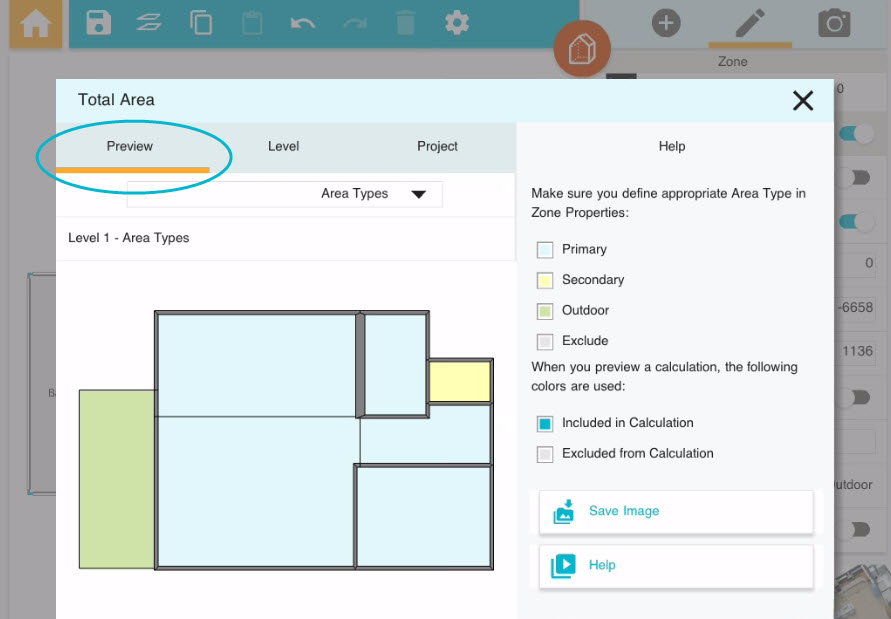
Use the drop down above the floor plan to see a visual of which of your floor plans' zones (rooms) are included in each calculation.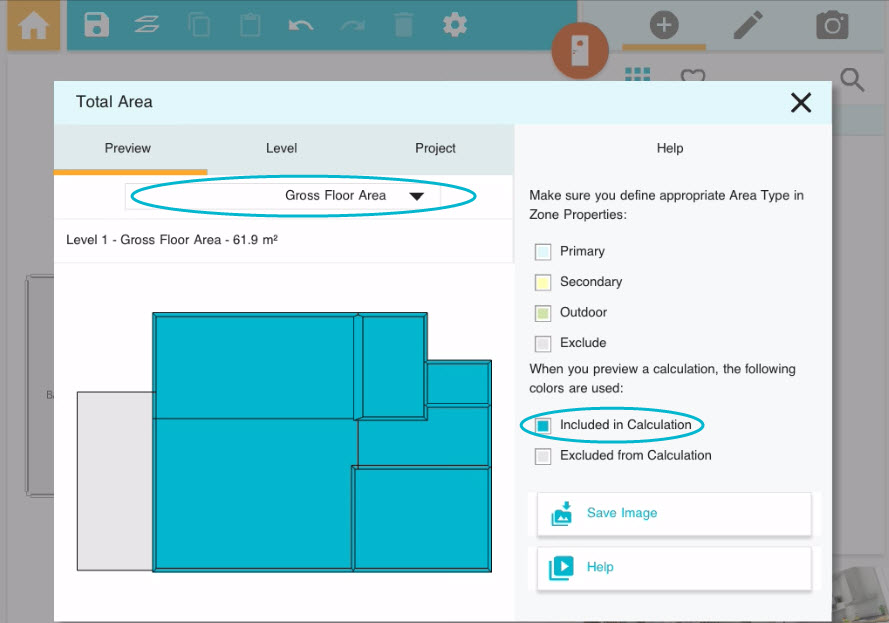
-
Preview tab – view a color-coded floor plan to easily visualize the Area Type selection for each zone (room) in your project. The color codes are defined on the right.
-
-
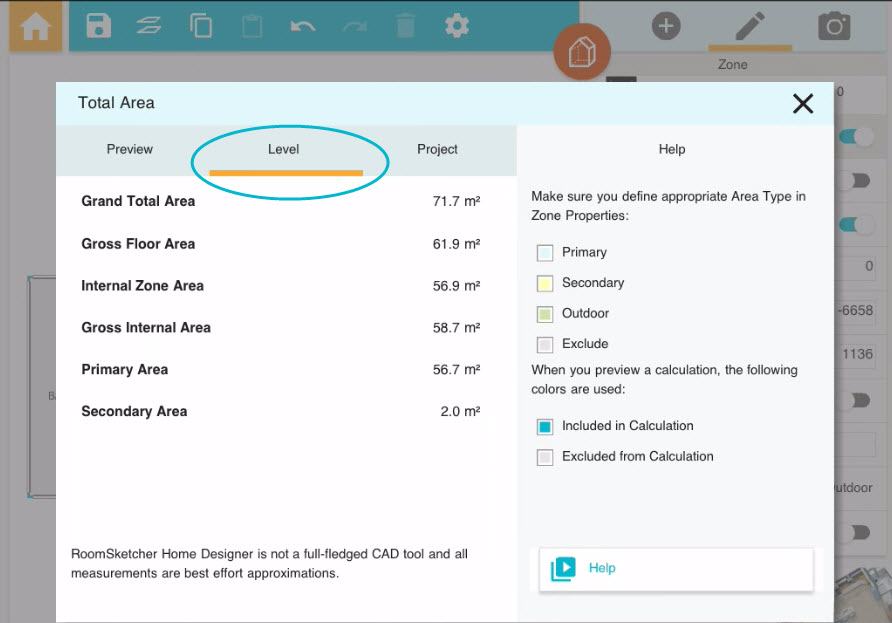
Level tab – view the calculations for the CURRENT level (or floor). Each calculation method is listed separately so you can easily compare them.
- Project tab – The Project tab shows the sum of ALL levels in the Project. Each calculation method is listed separately so you can easily compare them.
-
Level tab – view the calculations for the CURRENT level (or floor). Each calculation method is listed separately so you can easily compare them.
The RoomSketcher App is not a full-fledged CAD tool and all measurements are best effort approximations.
How Do I Add the Total Area to My Floor Plan?
Do you want to show the total area directly on your floor plan? Here’s how:
- In Windows etc. mode, open Symbols, Text & Lines.
- Choose the Text tool and drag it onto your project.
- Type the Total Area number into the Label field.

-
Generate your 2D or 3D Floor Plan.
How Do I Get the Total Area features?
Don’t have a Pro subscription yet? You’ll need one to access the total area calculations.
Simply log in to your existing RoomSketcher account and click Buy (next to your subscription details), or head to ourour pricing page to upgrade.
Can I Work With My Team?
Do you want to collaborate with your colleagues on a project? The Team subscription is right for you and your company. You can buy Team directly from our pricing page or if you have already a Pro subscription, please contact us and we help you with the upgrade.
Frequently Asked Questions (FAQ)
Yes! You can change your measurement units in the App under Menu > Meters or Feet.
It depends on which calculation option you select. The Internal Zone Area, for example, doesn't include any walls, while the Grand Total Area includes interior and exterior walls.
What if my project has multiple floors?
RoomSketcher calculates the total area for each floor separately and also totals all levels. Just switch between the Level and Project tab to view either a single floor or the combined total of all floors.