As a Pro or Team subscriber, you can choose what to show and hide each time you generate a floor plan. Do you want to show all furniture, just fixed appliances, or no furniture? What about room names or sizes? You choose what is shown on your 2D Floor Plans.
Want to adjust these settings?
👉 Contact us and we'll update them for you.
What Can I Show or Hide on a 2D Floor Plan?
With a RoomSketcher Pro or Team subscription, you can tailor what's visible on your 2D Floor Plans. Below we have listed all available options. These apply across your whole account, so once they're set up, every floor plan follows the same style.
If you’d like to adjust any of these settings, simply contact us and we'll update them for you.
Here are your options:
Furniture
You can choose which types of furniture to include when rendering 2D Floor Plans. There are three options available.
-
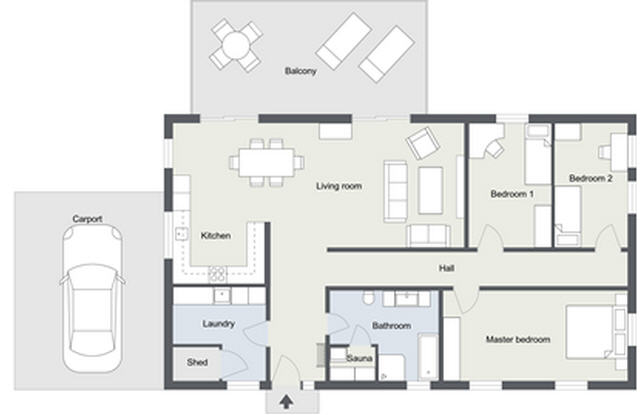
All furniture – All furniture you have added in your RoomSketcher project will be included when you generate a 2D Floor Plan. Exceptions are small furniture like lamps or carpets. Those are never shown on 2D Floor Plans.
-
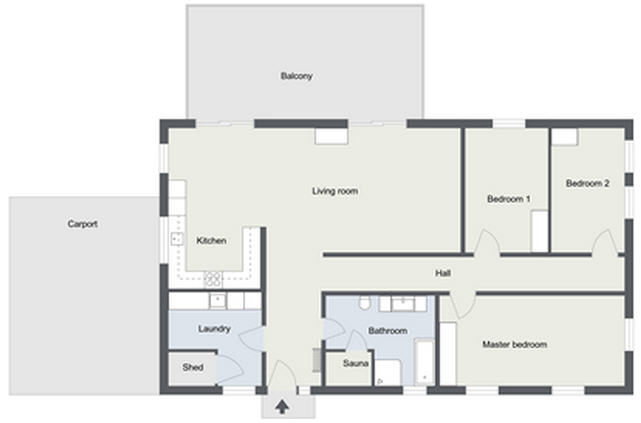
Fixed installations – Only the fixed installation will be included when you generate 2D Floor Plans. Fixed installations include kitchen and bathroom furniture, as well as wardrobes and fireplaces.
-
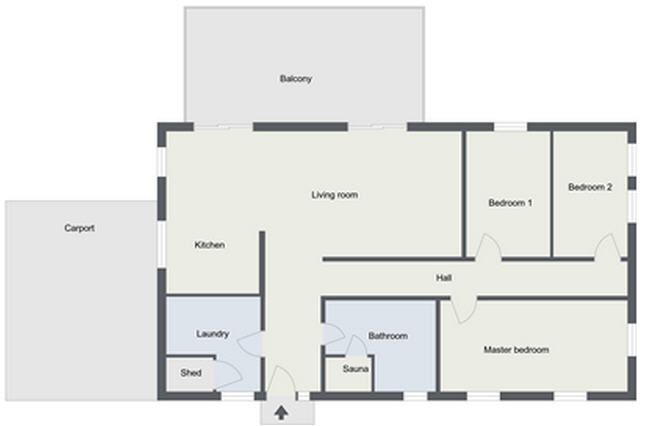
No furniture – No furniture or fixed installations will be included when you generate 2D Floor Plans. Your floor plan will still include doors, windows and stairs.
Kitchen Wall Cabinets
You can decide how your kitchen wall cabinets will be indicated in 2D Floor Plans. You have 6 options:
-
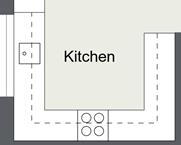
Dotted line complete – There will be a dotted line above your kitchen in 2D Floor Plans.
-
Dotted line cabinets – There will be a dotted line above your kitchen if you have added wall cabinets. There will be no dotted line if you have not added wall cabinets in your kitchen.

-
Solid line complete – There will be a solid line above your kitchen in 2D Floor Plans.
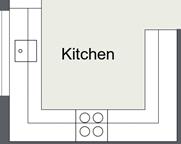
-
Solid line cabinets – There will be a solid line above your kitchen if you have added wall cabinets. There will not be a solid line if you have not added wall cabinets in your kitchen.
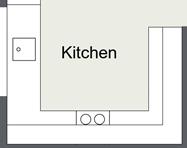
-
Individual cabinets – Each individual wall cabinet you add to your kitchen will be drawn separately, instead of one straight line over your entire kitchen.
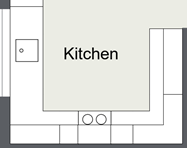
-
No cabinet line – This means that there will never be a line indicating wall cabinets in your kitchen, whether you add wall cabinets or not.

Zone Names
You can choose whether or not you want zone (or room) names that you have added to your floor plan to be included on your 2D Floor Plan.
Zone Sizes
You can choose whether or not you want zone (room) sizes to be included in your 2D Floor Plan. If yes, the zone sizes you have specified (see Display the Area of a Room on Floor Plans) will be included when you render 2D Floor Plans.
Furniture Labels
You can choose whether or not furniture labels (for example, W/D on a washer/dryer) should be included on your 2D Floor Plans. If yes, furniture labels will be included when you have added them in your project (see Add Labels on Furniture).
|
|